
Google Popcorn Game Not Working? 10 Fixes That Actually Work
Almost every Google Popcorn game problem comes down to the browser, an extension or the network. Here's how to fix it.
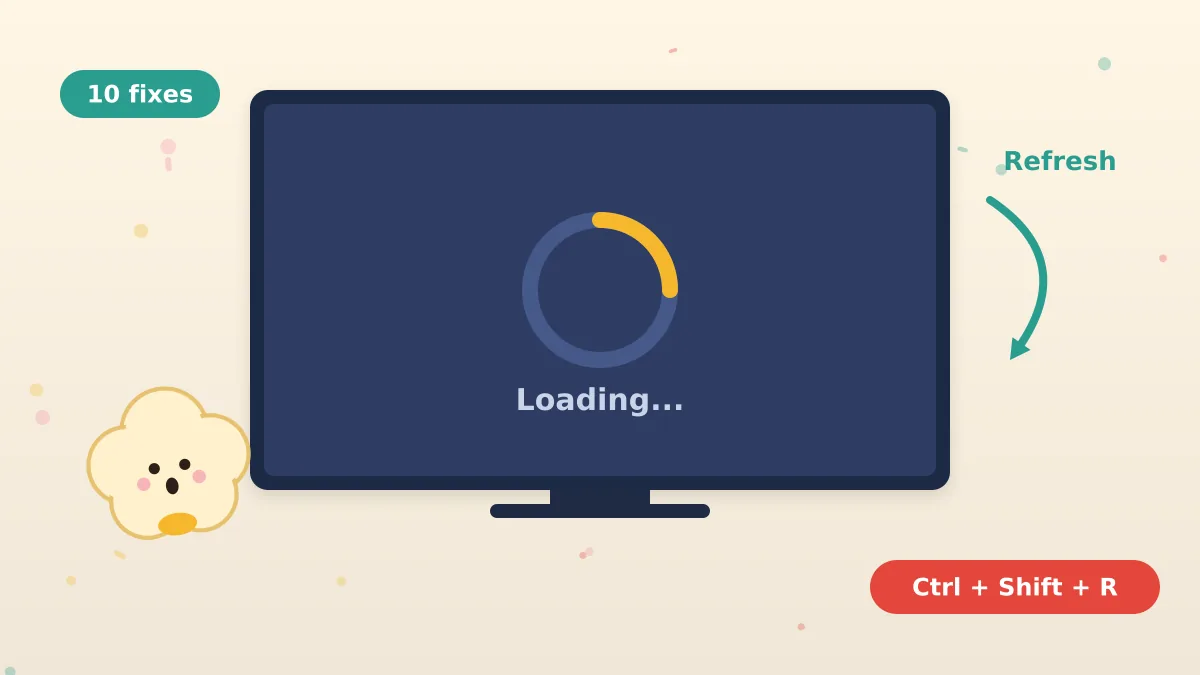
Table of contents
You clicked play. Nothing happened. Or the screen went black, the lobby never filled, or your kernel stuttered straight into a salt spray.
Good news: almost every Google Popcorn game problem comes down to the browser, an extension or the network. Here's how to fix it, in the order that solves problems fastest.
Want to play right now? Try the embedded game on our Popcorn Game homepage.
Why Is the Google Popcorn Game Not Working?
The Google Popcorn Doodle game is a real-time multiplayer browser game. It needs a modern browser, working JavaScript and a stable connection to Google's servers.
When any one of those breaks, the game breaks. The most common causes are:
- Browser extensions (ad blockers, script blockers, privacy tools)
- An outdated browser
- A weak or unstable internet connection
- School or workplace network filters
- Too many open tabs eating memory
- In-app browsers (opening the link inside Instagram, TikTok or Facebook)
Try These Fixes in Order
Work through these steps one at a time. Most problems are gone by step 3.
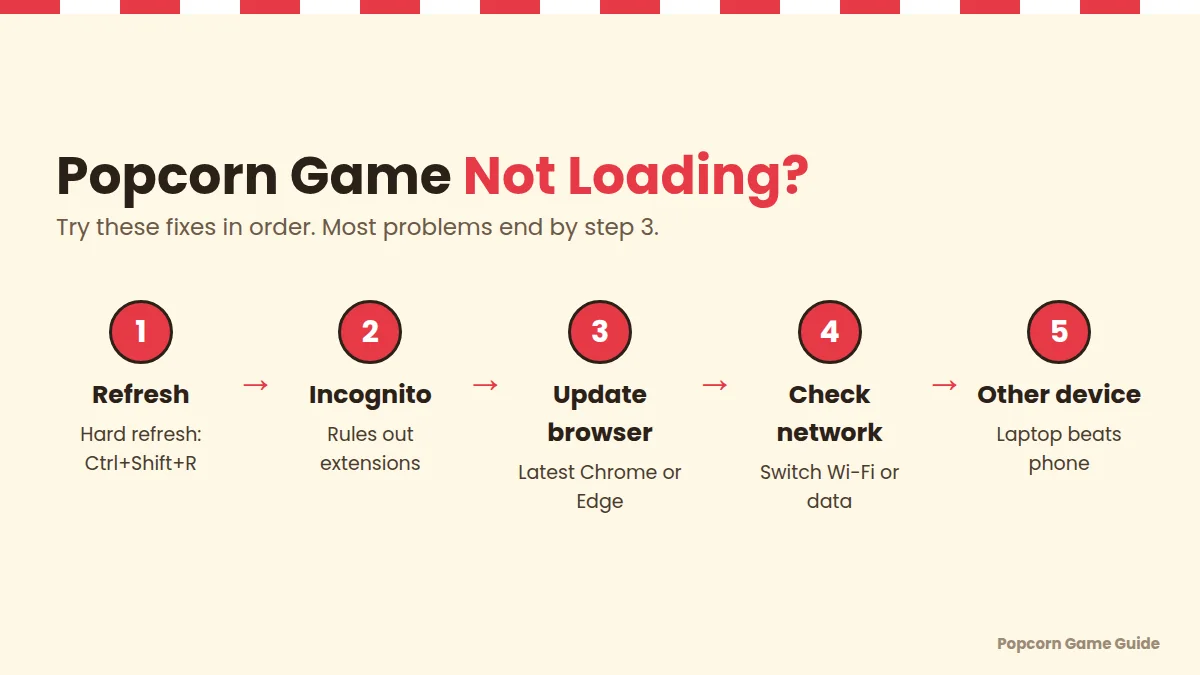
Fix 1: Hard Refresh the Page
A hard refresh reloads the game without cached files.
- Windows/Chromebook: Ctrl + Shift + R
- Mac: Cmd + Shift + R
- Phone: Close the tab completely and reopen the link.
Fix 2: Open the Game in an Incognito Window
Incognito mode runs without most extensions. If the game works there, an extension is the problem.
- Chrome/Edge: Ctrl + Shift + N
- Safari: File → New Private Window
Fix 3: Disable Ad Blockers and Script Blockers
Extensions like ad blockers and script blockers can stop the game from loading. Turn them off for the game page, then reload.
Fix 4: Update Your Browser
The game uses modern web features. An old browser may show a blank or black screen.
- Chrome: Menu → Help → About Google Chrome
- Safari: Update macOS or iOS
Fix 5: Check Your Internet Connection
Multiplayer games need a steady connection, not just a fast one.
- Move closer to your router, or switch to mobile data.
- Pause big downloads and video streams on the same network.
Fix 6: Close Extra Tabs and Apps
Every open tab uses memory. On older laptops and Chromebooks, closing tabs can remove lag instantly.
Fix 7: Turn On Hardware Acceleration
If the game stutters in Chrome, check Settings → System → Use graphics acceleration when available. Turn it on and restart Chrome.
Fix 8: Don't Use In-App Browsers
Links opened inside Instagram, TikTok, Snapchat or Facebook use a limited built-in browser. Tap "Open in browser" instead.
Fix 9: Try Another Browser
If Chrome fails, try Edge or Firefox. If Safari fails, try Chrome. This quickly tells you whether the problem is your browser or your device.
Fix 10: Switch Devices
A laptop or desktop with a keyboard gives the smoothest experience. Phones work, but older ones can struggle in busy late-game phases.
Common Popcorn Game Problems and Fixes
Match your problem to its fix:
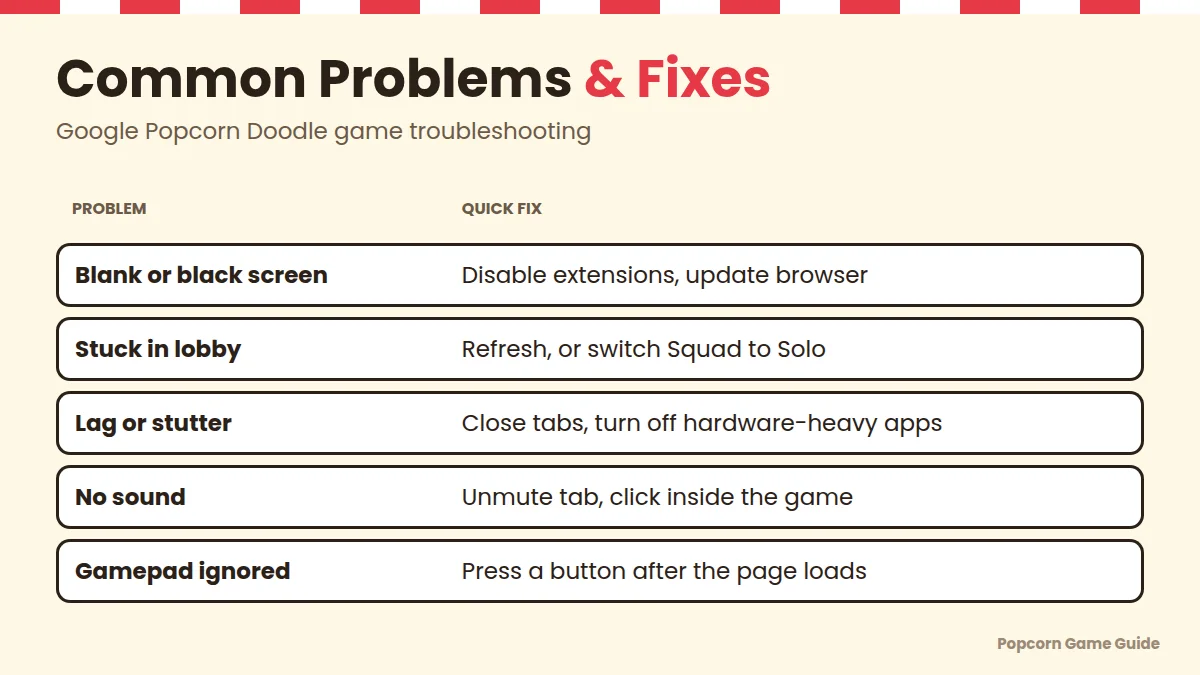
| Problem | Most Likely Cause | Quick Fix |
|---|---|---|
| Blank or black screen | Extension or outdated browser | Incognito window; update browser |
| Stuck in the lobby | Matchmaking or slow connection | Refresh, or switch from Squad to Solo |
| Lag or stuttering | Weak Wi-Fi, too many tabs | Close tabs, move closer to router |
| No sound | Muted tab or autoplay blocked | Unmute the tab; click inside the game once |
| Gamepad not working | Browser didn't detect it | Press a button after the page loads |
| Friends can't join squad | Different links or in-app browser | Share one link; open in a real browser |
| "This site is blocked" | School or work filter | See the school section below |
Popcorn Game Not Working on Mobile
The game runs in mobile browsers with on-screen controls, but phones cause a few extra problems.
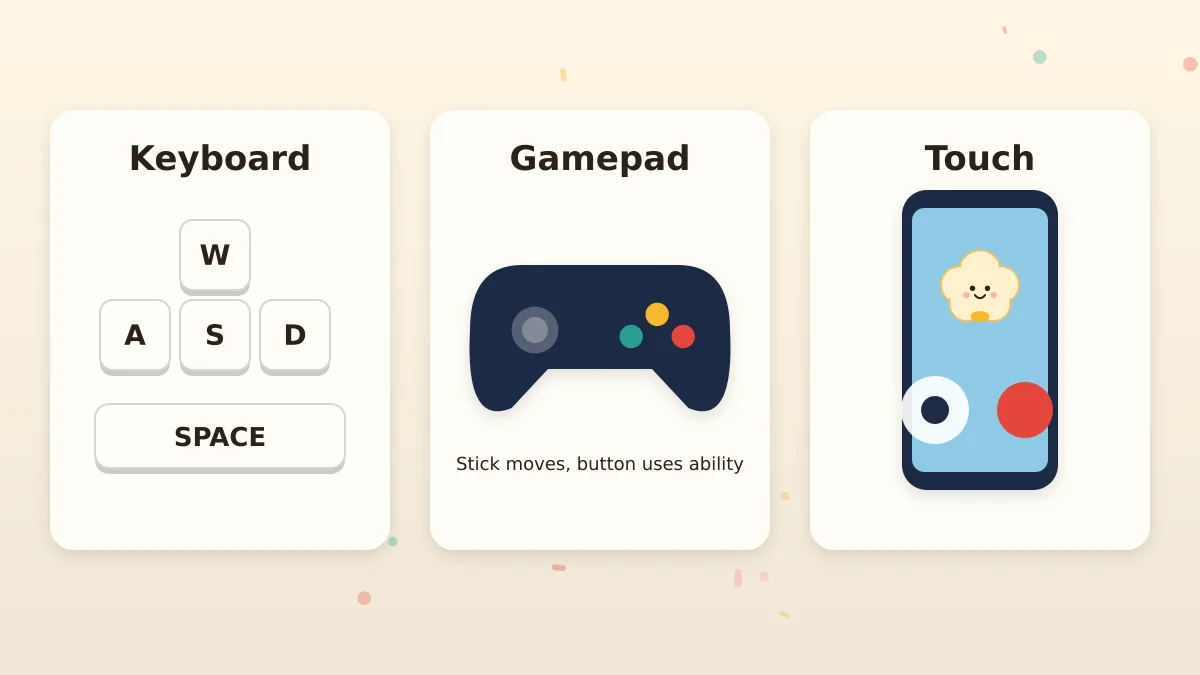
- Use Chrome or Safari, not an app's built-in browser.
- Turn off Low Power Mode (iPhone) or Battery Saver (Android). They can throttle games.
- Rotate your phone if the controls feel cramped.
- Close background apps to free memory.
Popcorn Game Not Working on a School Chromebook
If you see a "blocked" page, the game is loading fine. Your school's web filter is stopping it.
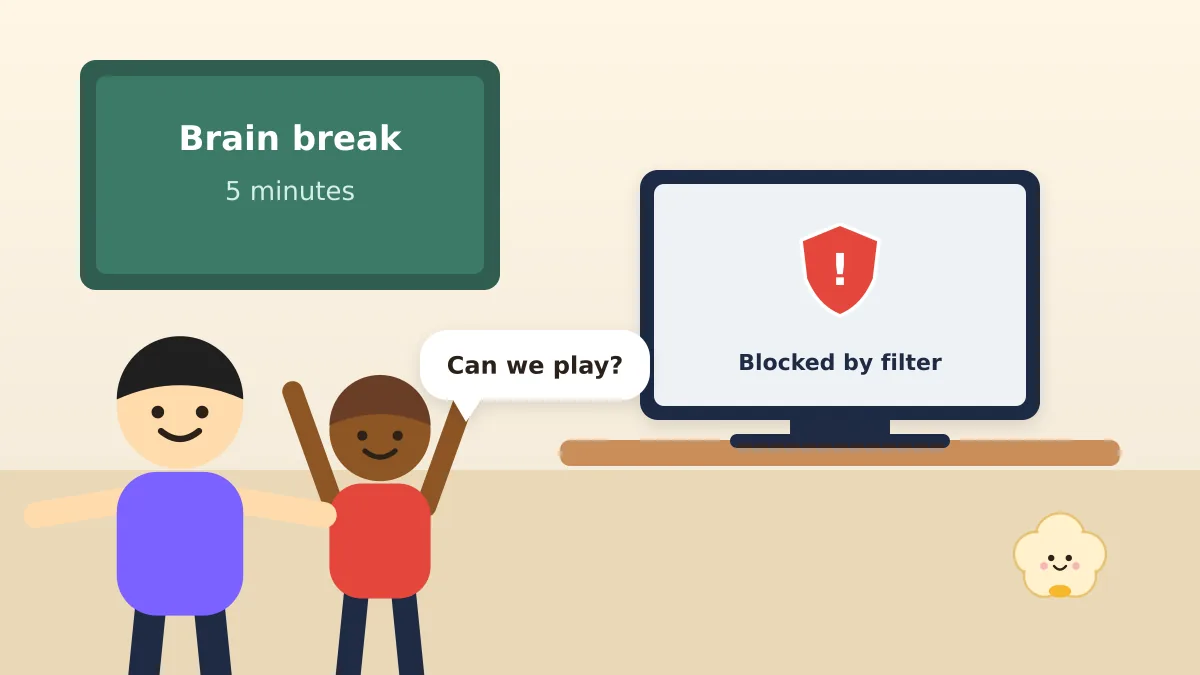
That's not something to "fix" on a school device. Proxy sites and VPNs usually break school rules and can get your account suspended. Instead, ask your teacher or IT team, or play at home.
Read more in our guide: Google Popcorn game unblocked: how to play at school safely.
Still Not Working? Last Checks
- Clear your browser cache for the last hour and restart the browser.
- Restart your device. It sounds basic, but it clears stuck memory and network issues.
- Try a different network, such as mobile data instead of Wi-Fi.
- Wait and retry. Occasionally, Google's game servers are busy.
FAQs
Why won't the Google Popcorn game load?
Usually because of a browser extension, an outdated browser or a network filter. Try a hard refresh, then an incognito window.
Why is the Popcorn game lagging?
Lag usually comes from weak Wi-Fi, too many open tabs or graphics acceleration being off. Close tabs and move closer to your router.
Why am I stuck in the Popcorn game lobby?
Matchmaking may be slow or your connection may have dropped. Refresh the page or switch to Solo mode.
Does the Popcorn game work on iPhone?
Yes. It runs in Safari and Chrome on iPhone. Open it in the browser, not inside another app.
Is the Google Popcorn game still available?
Yes. It's still playable in 2026 through the Google Doodles archive and on our Popcorn Game homepage.